Reference-driven creativity

Image to Image AI by Reimorph

Start with an image. Describe what changes. Keep the details that matter. Explore a more intentional way to edit photos, products and visual ideas.

JPG, PNG or WebP · up to 10MB per reference · sign in to upload

What is Image to Image AI?

Image to Image AI turns a picture you already have into the picture you described. Upload the photo, type one instruction — “dress her in the coat from image 2 and place her on a Paris street” — and the model rebuilds the scene around what must stay. It is the difference between drawing from a blank canvas and editing from your own starting point.

See the direction before you start

Image to Image AI editing examples

Three fashion and product directions, edited from references. Every pair is a recorded Nano Banana Pro run made for this page — plain sources in, one focused edit out. Select a scenario to inspect its prompt.

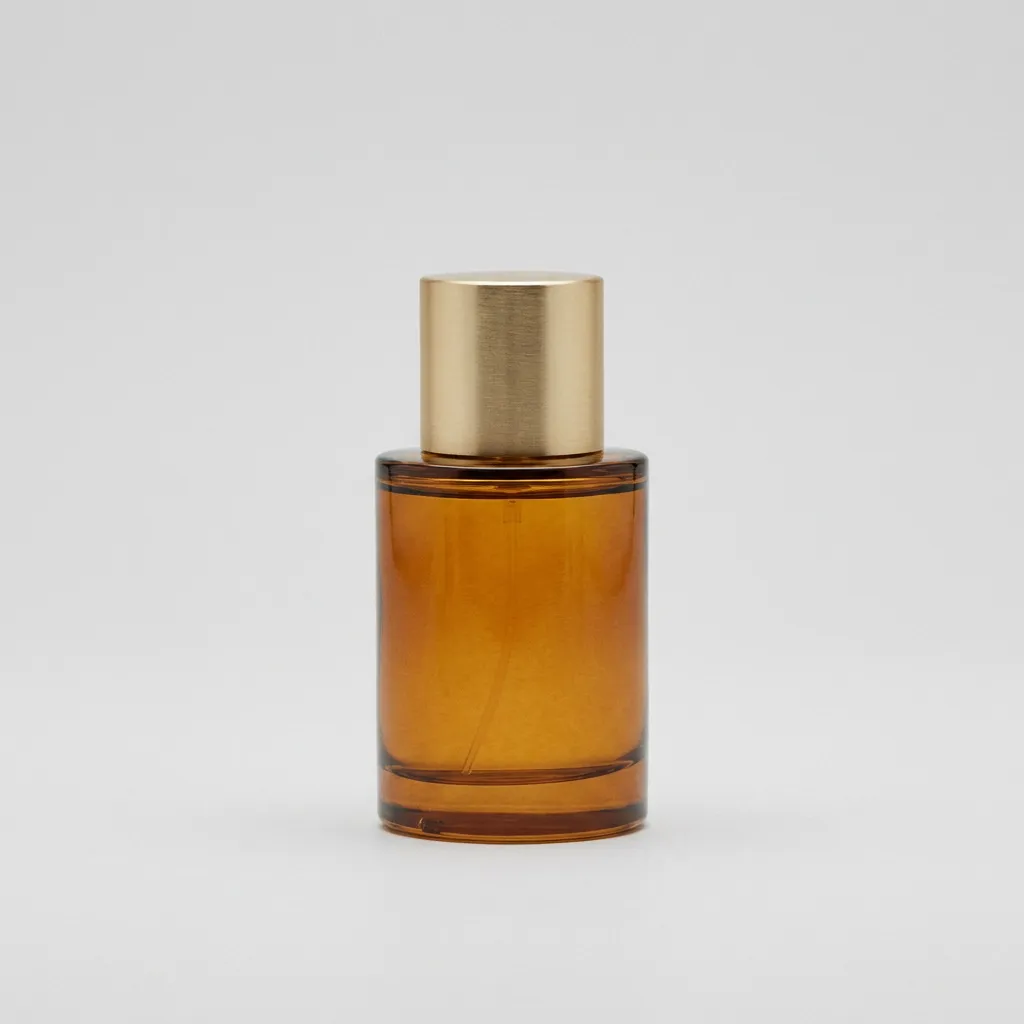
Product staging: reference 1
Reference 1
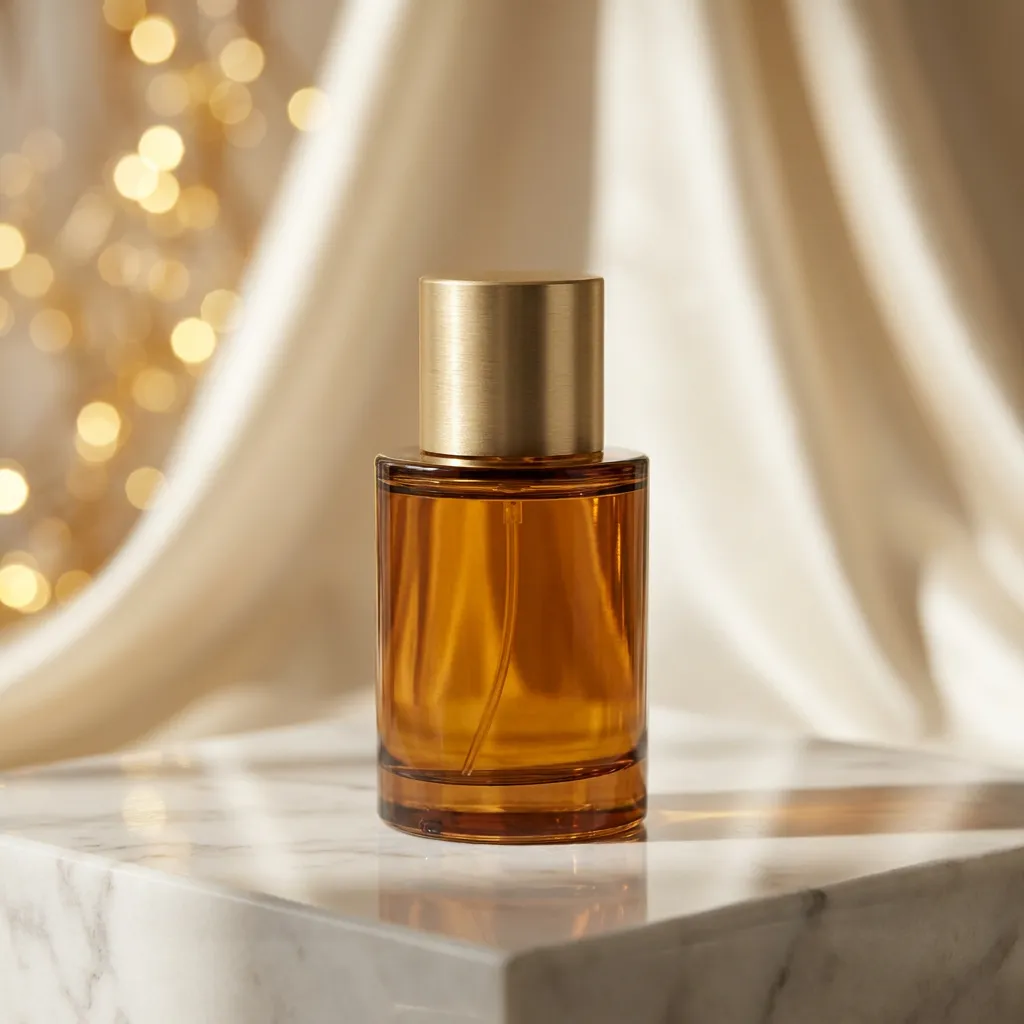
Product staging: nano banana pro edit
Nano Banana Pro edit

Nano Banana Pro · 1K · 1:1 · 1 reference image

Start from the plain product photo you already have. One prompt moves the perfume onto a marble pedestal with warm directional light and a silk-draped backdrop, while the bottle keeps its exact shape, glass color and cap.

View the editing prompt

Place this perfume bottle on a polished white marble pedestal in a luxury still-life scene: warm directional light, soft realistic shadows, blurred background of ivory silk drapery and golden bokeh, high-end advertising photography. Keep the bottle exactly as shown — same shape, glass color, cap and proportions. No added text or logos.

Image to Image AI for reference-driven edits.
Not a blank canvas.

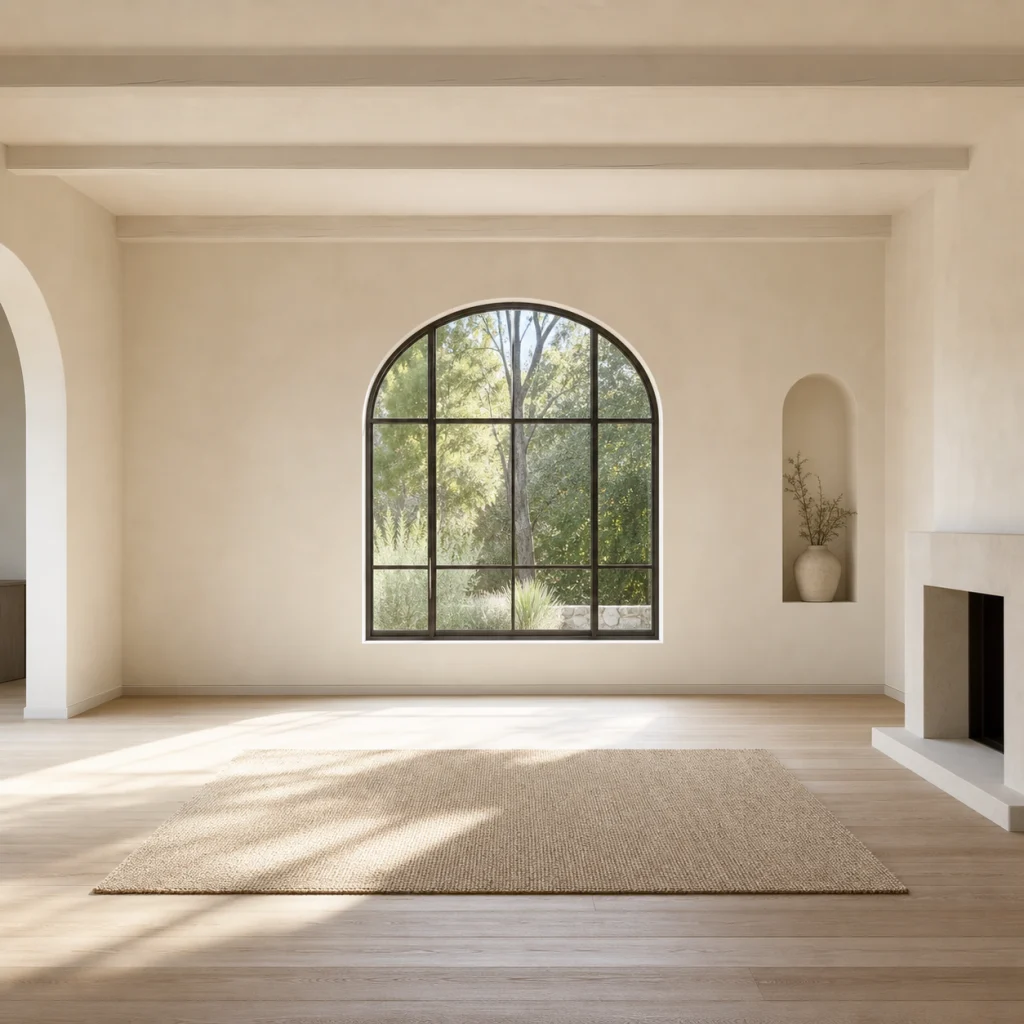
Interior design: reference
Reference
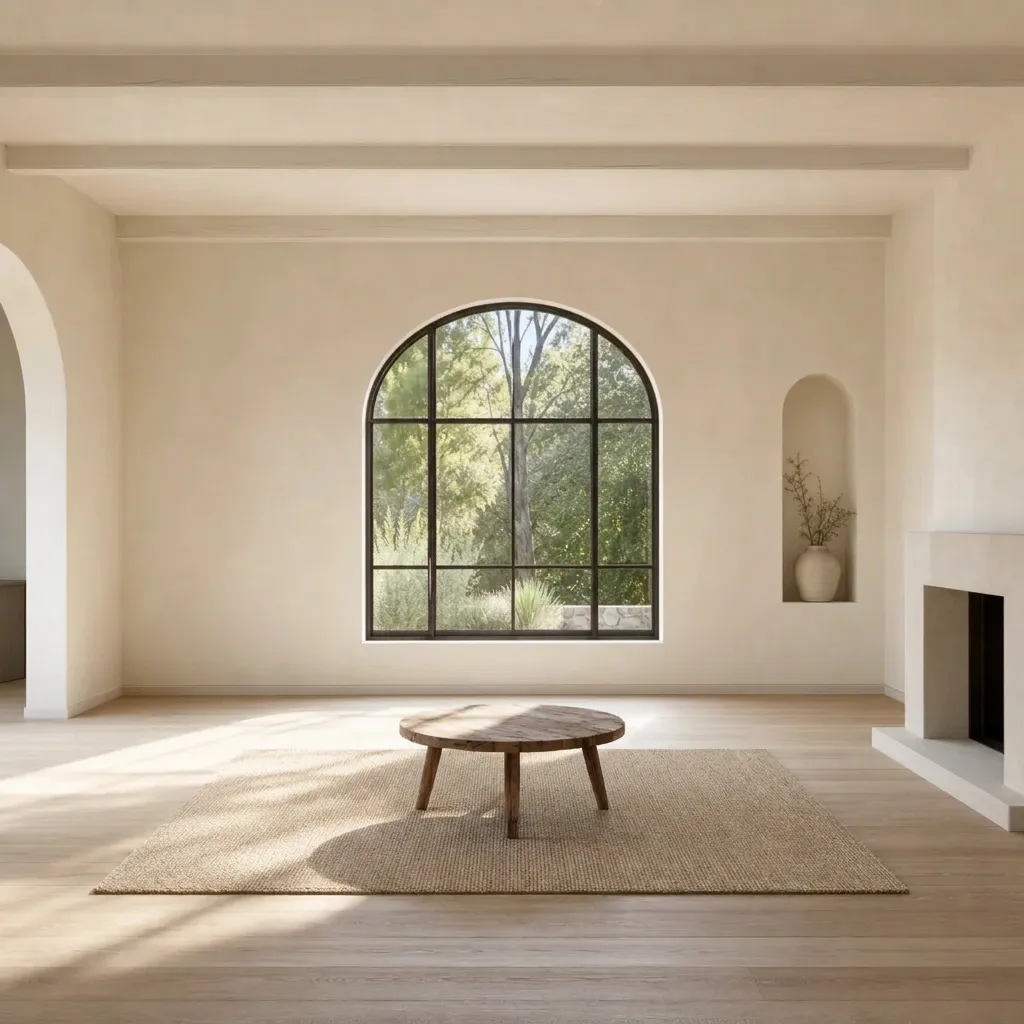
Interior design: nano banana pro edit
Nano Banana Pro edit

Interior design

A new room. The same point of view.

Explore furniture, materials and atmosphere without starting from an empty canvas. A reference makes the room’s architecture and camera angle explicit, while a focused prompt describes the intended change. Review perspective, windows and light direction before treating an edit as a design decision.

View the editing prompt

Add a small wooden coffee table to this empty living room. Keep the windows, walls, camera angle and natural lighting. No people or text.
Season & lighting: reference
Reference
Season & lighting: illustrative direction
Illustrative direction

Season & lighting

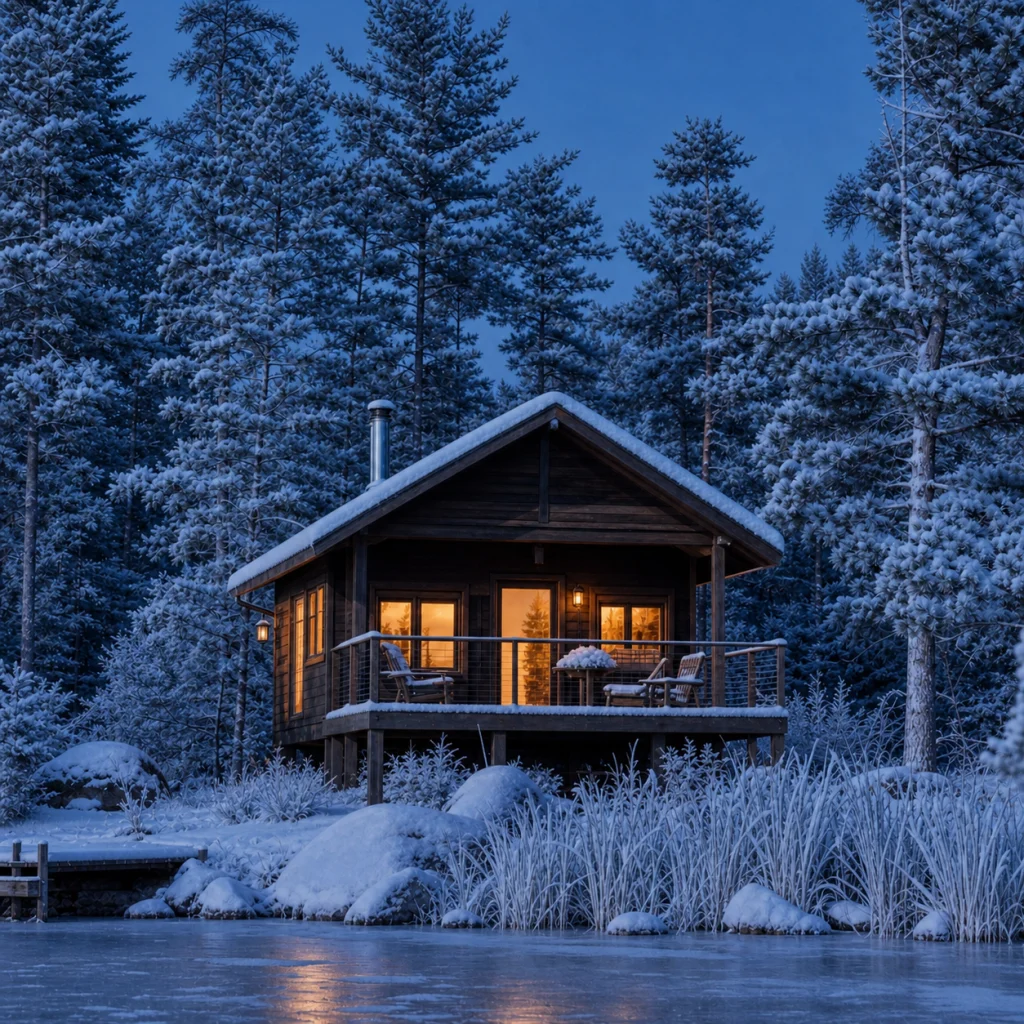
Change the atmosphere, not the story.

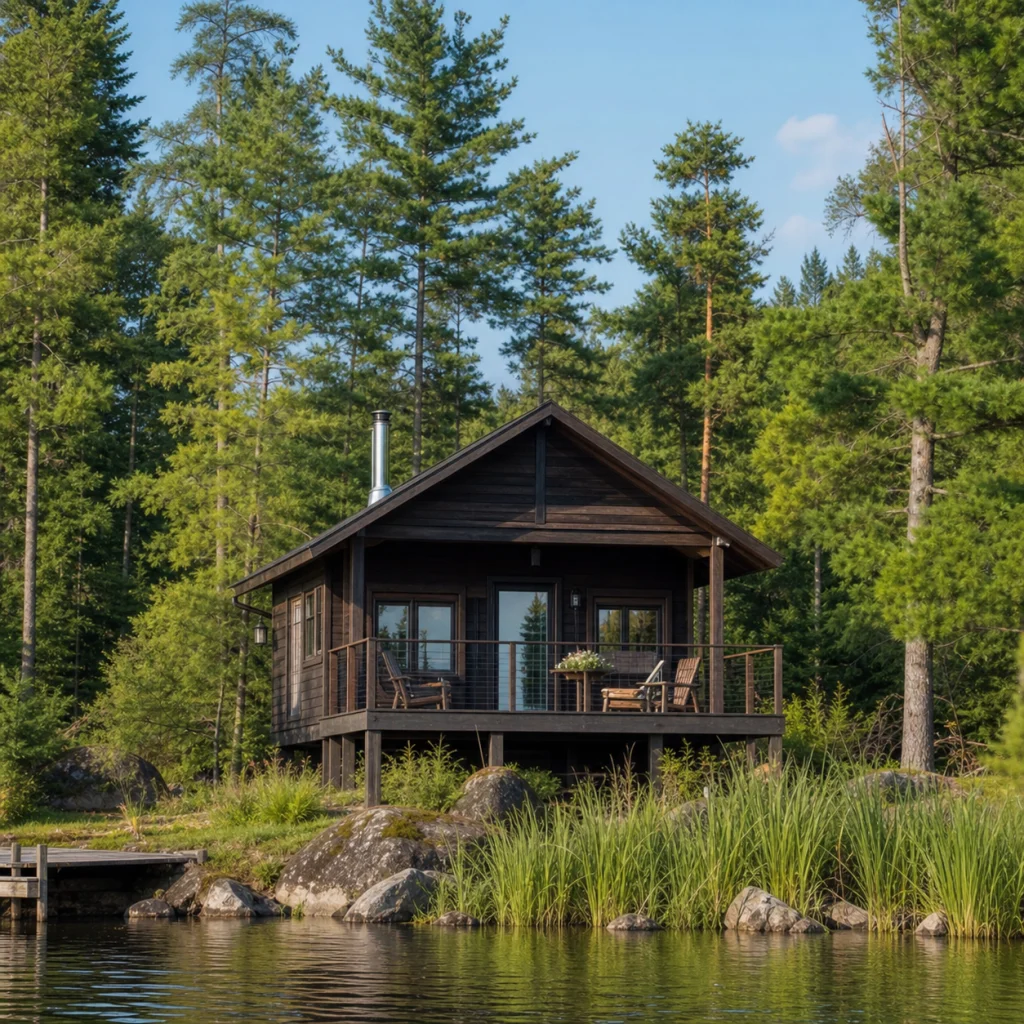
Use the same scene to explore a new season or time of day. Name which surfaces should change and which landmarks should stay. Snow, reflections and shadows can introduce unintended details, so compare the result with the reference instead of assuming the entire composition was preserved.

View the editing prompt

Transform this lakeside cabin from late summer to a snowy winter evening. Add fresh snow, a partly frozen lake, blue-hour light, and a warm glow inside while preserving the cabin, trees, shoreline, and camera angle.

Product concepts: reference
Reference
Product concepts: illustrative direction
Illustrative direction

Product concepts

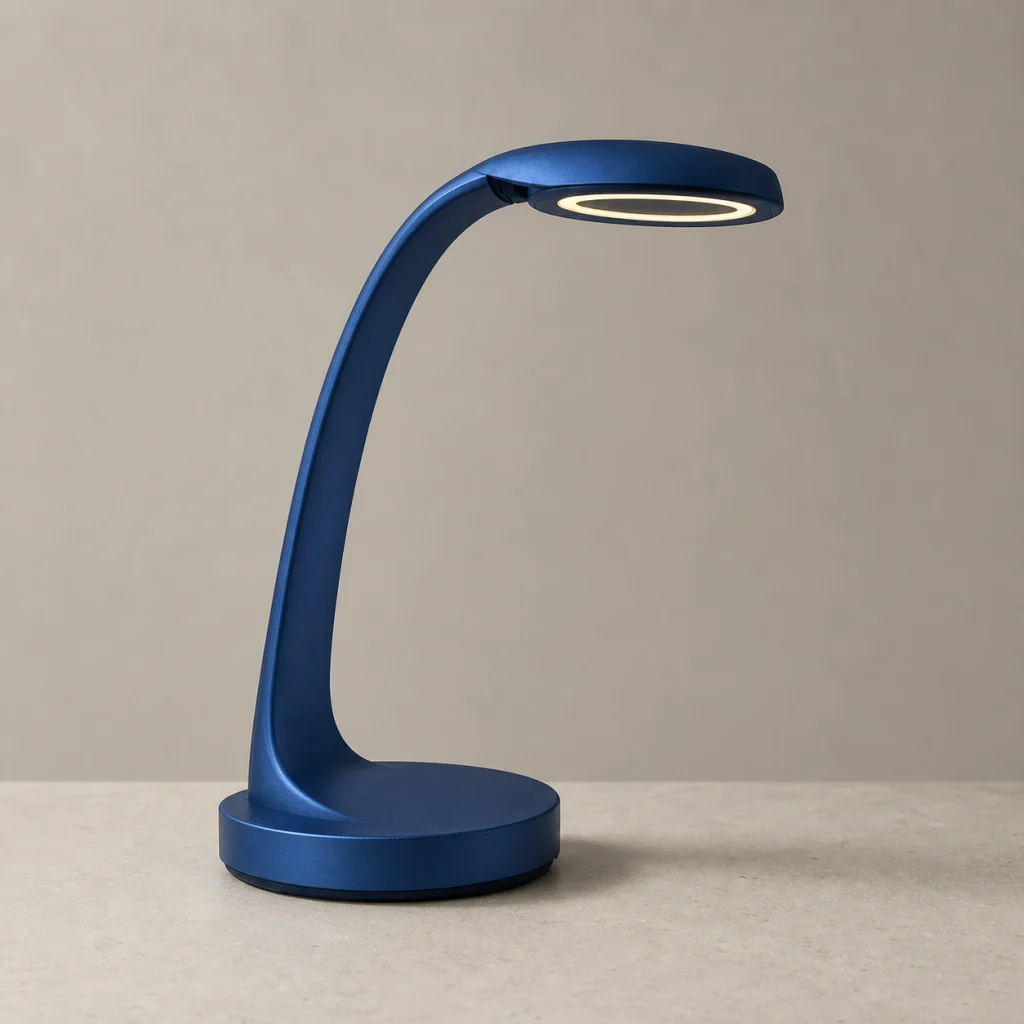
Take a sketch somewhere new.

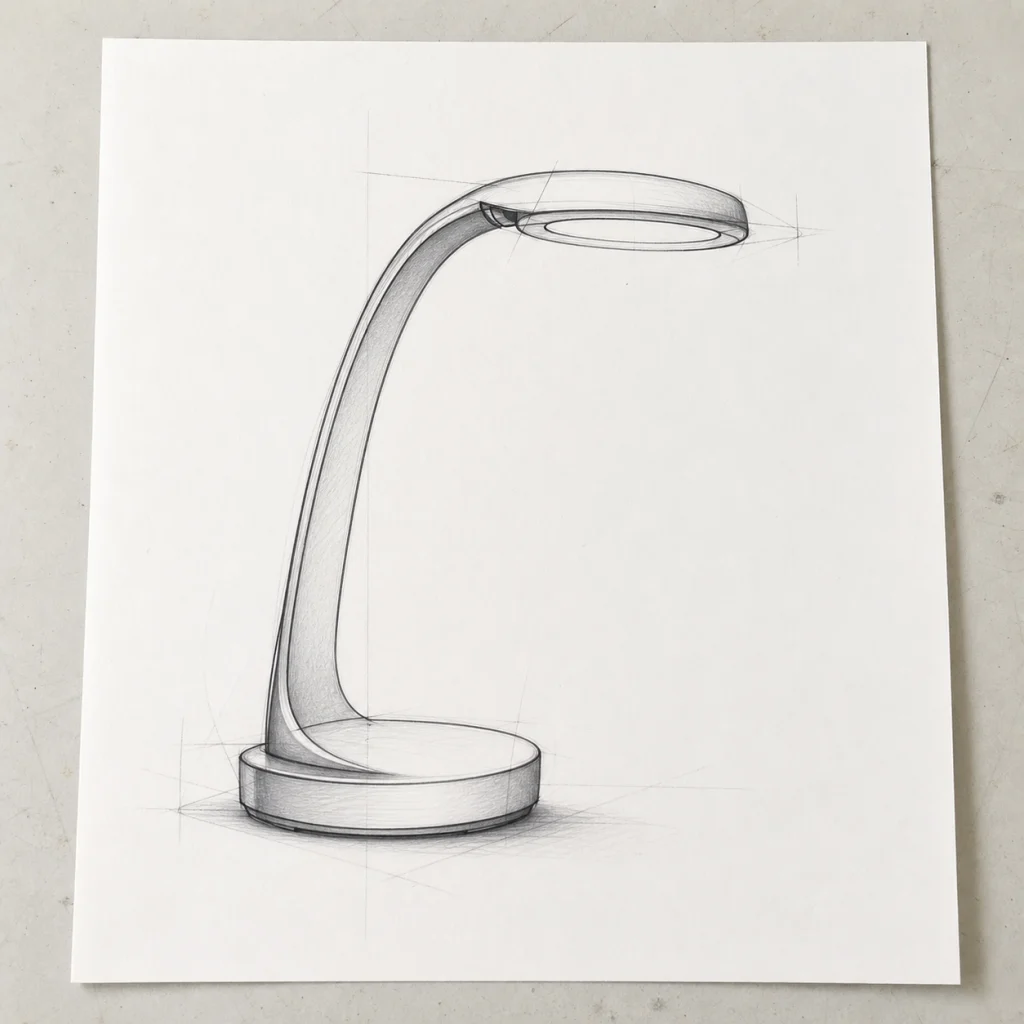
A sketch can describe a silhouette more clearly than a long prompt. Explore a material, color or product-render direction while keeping the intended proportions visible. These are visual concepts—not dimensionally accurate manufacturing drawings or proof that an object can be produced.

View the editing prompt

Turn this desk lamp sketch into a photorealistic product made from matte cobalt-blue anodized aluminum with a warm LED ring. Preserve the exact silhouette, proportions, base, head shape, and viewing angle.

Portrait edits: reference
Reference
Portrait edits: illustrative direction
Illustrative direction

Portrait edits

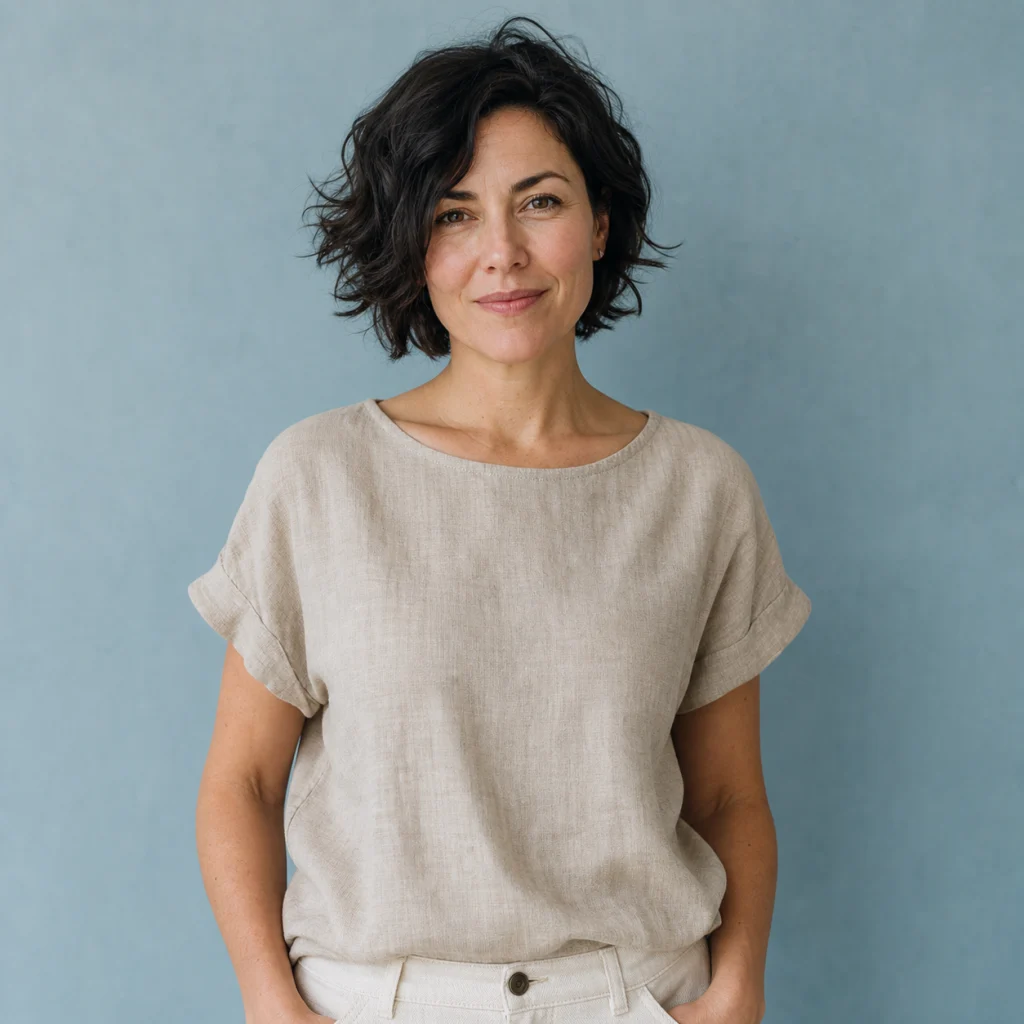
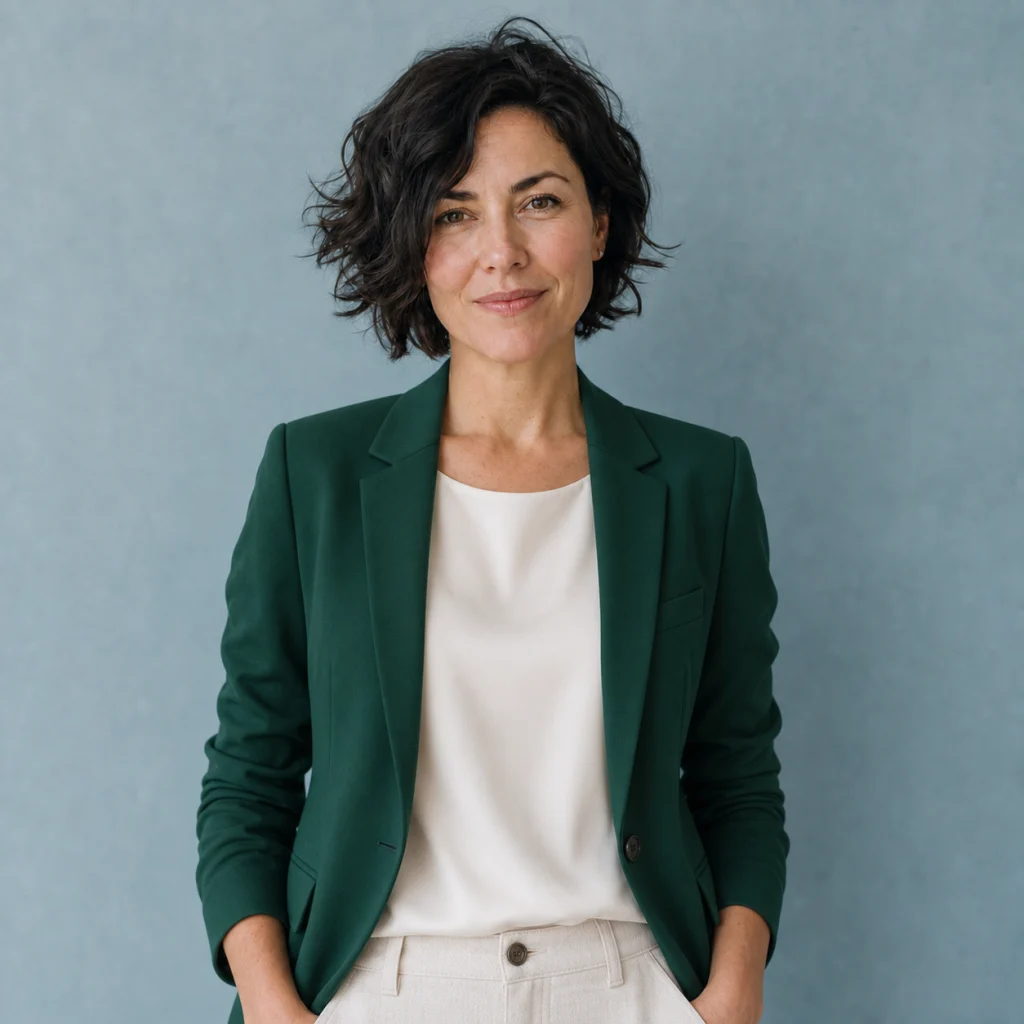
One outfit change. Clear boundaries.

For portraits, separate the requested edit from protected details: face, hair, pose, framing and background. Keep the request narrow, then inspect identity and small details. Generative editing does not guarantee an unchanged likeness; exact retouching may require a conventional editor.

View the editing prompt

Replace only the beige linen blouse with a deep emerald-green tailored blazer over an ivory silk top. Preserve the person’s identity, face, hair, expression, pose, framing, background, and lighting.

How to use Image to Image AI

  1. 01

    Add your reference

    Sign in and select a JPEG, PNG or WebP image up to 10MB. Choose a clear reference, inspect the preview and use images you have permission to edit. A well-framed source makes the subject and composition easier to describe.

  2. 02

    Define the change

    Name one transformation, then list the details that should stay recognizable. A concrete instruction is easier to evaluate than a broad request to make everything better. Use the scene prompts as starting points, not guarantees.

  3. 03

    Review before using

    Choose an editing model, check the displayed credit cost and generate your image. Compare identity, geometry, text and lighting with the reference. Keep the result you prefer or adjust the prompt for another version.

What you get with Reimorph

Everything an image editor needs. Nothing it doesn't.

No credit card to try, no watermarks on your results, no lock-in to a single model. Here is exactly what the workspace gives you.

GPT Image 24 crGrok Imagine Image2 crNano Banana Pro8 crNano Banana 25 crFLUX Kontext Pro3 crFLUX Kontext Max5 crFLUX.2 Edit3 crQwen Image Edit 25113 cr

8 editing models in one place

From budget-friendly Grok at 2 credits to flagship Nano Banana Pro at 8 — pick per edit, switch anytime, no separate subscriptions.

Cost shown before you generate

The Generate button always displays the exact credit cost for your chosen model, resolution and options — no surprise billing, no hidden tiers.

Your images stay private

References and results live in your private workspace behind per-account ownership checks. We never train on your images or share your gallery.

Compare models side by side

Send the same reference to different models and compare quality, detail preservation and credit cost — the comparison is real, not marketing.

Failed generations are free

If a job fails or times out, credits are automatically returned to your balance. You only pay for delivered images.

Content safety built in

Every prompt is screened before generation; every output image is reviewed before delivery. Flagged content is blocked and credits are refunded.

How to get the edit you want

Two skills make the difference between a lucky edit and a reliable one: writing a focused prompt, and knowing what to check in the result.

01Name the target

Say which object or area changes: "the jacket", "the background", "the table surface". Vague targets give vague edits.

02Describe the change

Use concrete words: "navy blue jacket", "soft evening light", "marble pedestal". Not "make it better" — say what better looks like.

03List what stays

Face, hair, pose, camera angle, background — naming them means the model tries to keep them. Unnamed details are fair game.

Example prompt — copy and adapt

Change the jacket color to navy blue. Keep the face, hairstyle, pose, camera angle and background unchanged. Preserve the existing light direction and shadows.

Check the result

Identity

Compare faces, silhouettes and product shapes with the reference.

Fine details

Inspect logos, printed text, hands and small repeating patterns.

Geometry

Check framing, perspective, reflections and shadow direction.

A reference guides a generative model; it does not lock every pixel. If an important detail changes, narrow the instruction or try a different model. Treat product and interior outputs as visual concepts, not manufacturing drawings.

Image to Image AI: frequently asked questions

What is an image to image AI generator?

An image to image AI generator creates a new visual from an existing reference image and a text instruction. It uses the reference for subject, composition, or style while applying the changes described in your prompt.

How is image to image different from text to image?

Text to image starts from a written description alone. Image to image also receives a visual reference, so it can preserve recognizable subjects, layouts, colors, or poses instead of rebuilding every detail from words.

Can I use the image to image generator for free?

Each generation uses the credit cost shown for the selected model. Check your account balance and any available welcome credits before submitting. Different models use different credit amounts, so a balance is not the same as a fixed number of images.

Will the generated image stay close to the reference?

The result usually stays closer when the prompt requests one focused change and clearly names what should remain unchanged. A full style or scene transformation gives the model more freedom to reinterpret the source.

How do I write a good image editing prompt?

Describe the change directly, then list important details to preserve. For example: “remove the bicycle, rebuild the garden naturally, and keep the bench, camera angle, lighting, and shadows unchanged.”

Which image formats and reference limits are supported?

Upload JPG, PNG, or WebP images up to 10MB each. Reference limits depend on the selected model. Only upload material you are allowed to share for model processing, and review the privacy policy before using personal images.

Edit any photo with Image to Image AI

Upload a reference picture, describe one focused change and keep the details that matter — products, outfits, portraits or scenes. The editor is right above, ready when you are.

Try Image to Image AI now